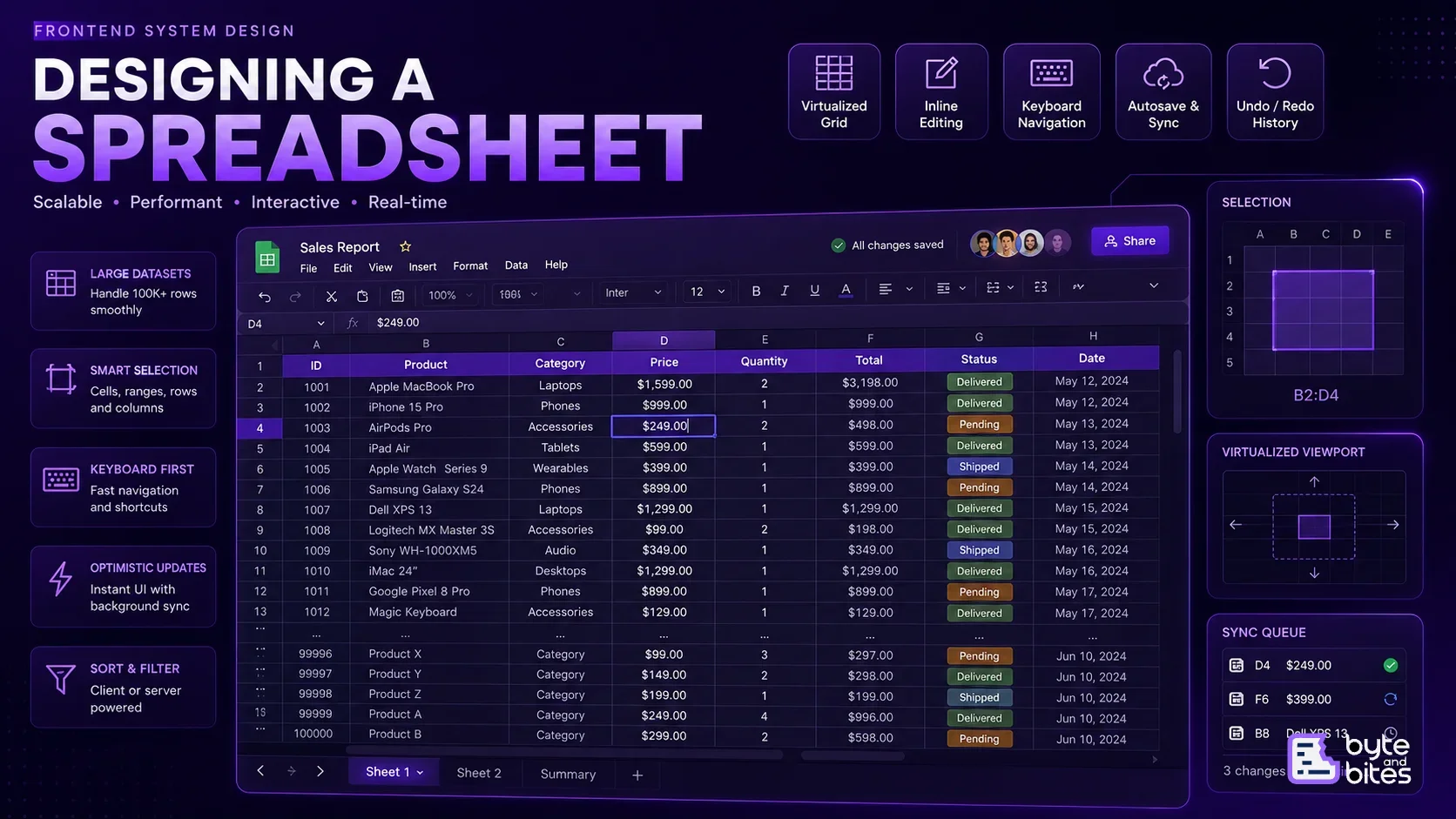
Design a spreadsheet application that supports:
- Large datasets
- Rows and columns
- Cell selection
- Inline editing
- Multi-cell selection
- Keyboard navigation
- Copy and paste
- Column resizing
- Sorting and filtering
- Autosave
- Undo and redo
The application should remain responsive even with tens of thousands of rows.
The key question is:
How do you make a spreadsheet with 100,000 rows feel as fast as one with 100 rows?
Requirements
Functional Requirements
- Displaying rows and columns
- Selecting cells
- Editing cells
- Selecting ranges
- Keyboard navigation
- Copy and paste
- Sorting
- Filtering
- Column resizing
- Autosaving changes
- Undo and redo
Non-Functional Requirements
- Maintain smooth scrolling
- Avoid rendering unnecessary cells
- Provide immediate feedback while editing
- Minimize network requests
- Handle large datasets
- Work with keyboard and mouse interactions
- Recover gracefully from failed saves
High-Level Architecture
The most important architectural decision is to separate the spreadsheet into layers.
Spreadsheet
↓
Viewport
↓
Virtualized Grid
↓
Visible Cells
↓
Local State
↓
Sync Queue
↓
API
The browser should never render every cell in the dataset.
For example, 100,000 rows × 50 columns would represent 5 million possible cells.
Instead, we render only the cells currently visible in the viewport, plus a small buffer.
1. Spreadsheet Data Model
A simple cell could look like:
interface Cell {
value: string;
type: "text" | "number" | "date" | "formula";
formula?: string;
}
A spreadsheet can then be represented as rows and columns:
interface Row {
id: string;
cells: Record<string, Cell>;
}
The important thing is not to tightly couple the entire spreadsheet state to the rendered DOM.
The data model should exist independently from the visible cells.
2. Virtualized Grid
This is the heart of the design.
Imagine a spreadsheet with:
100,000 rows
50 columns
Rendering every cell would create around:
5,000,000 cells
That's obviously not practical.
Instead:
5,000,000 possible cells
↓
Viewport
↓
Visible region
↓
~100–500 cells
Only the visible region needs to be rendered.
3. Two-Dimensional Virtualization
A normal list only needs vertical virtualization.
A spreadsheet needs both:
Vertical virtualization
Horizontal virtualization
For example:
         A    B    C    D    E    F
       ┌────┬────┬────┬────┬────┬────┐
  1    │    │    │    │    │    │    │
  2    │    │    │    │    │    │    │
  3    │    │    │    │    │    │    │
  4    │    │    │    │    │    │    │
       └────┴────┴────┴────┴────┴────┘
If the user scrolls vertically, new rows are rendered.
If they scroll horizontally, new columns are rendered.
This keeps the number of actual DOM elements relatively small.
4. Viewport Calculation
The virtualizer needs to determine which cells are visible.
Scroll Position
↓
Viewport Bounds
↓
Visible Rows
↓
Visible Columns
↓
Render Cells
For example:
const visibleRows = getVisibleRows(
  scrollTop,
  viewportHeight
);

const visibleColumns = getVisibleColumns(
  scrollLeft,
  viewportWidth
);
The renderer then combines those ranges.
5. Overscan
Rendering exactly the visible cells can cause flickering while scrolling.
Instead, render a small buffer around the viewport.
       Overscan
┌─────────────────────┐
│       Row 90        │
│       Row 91        │
├─────────────────────┤
│   Visible Viewport  │
│       Row 92        │
│       Row 93        │
│       Row 94        │
├─────────────────────┤
│       Row 95        │
│       Row 96        │
└─────────────────────┘
        Overscan
This makes fast scrolling feel smoother.
The trade-off is that more cells are rendered.
6. Cell State
A spreadsheet has more state than just the cell value.
A cell can be:
Normal
Selected
Editing
Focused
Dirty
Invalid
For example:
interface CellUIState {
selected: boolean;
editing: boolean;
focused: boolean;
dirty: boolean;
error?: string;
}
It's useful to keep this UI state separate from the actual cell data.
7. Cell Selection
Selection is one of the more interesting parts of the problem.
A user may select:
Single Cell
A1
Range
A1:D5
Entire Row
Row 5
Entire Column
Column C
Instead of storing every selected cell individually, represent a selection as a range:
interface Selection {
startRow: number;
startColumn: number;
endRow: number;
endColumn: number;
}
This is much more efficient for large selections.
8. Keyboard Navigation (Optional)
A spreadsheet should be usable without a mouse.
Typical interactions include:
Arrow Keys     → Move selection
Enter          → Edit cell
Tab            → Next cell
Shift + Tab    → Previous cell
Escape         → Cancel editing
Delete         → Clear cell
Ctrl/Cmd + C   → Copy
Ctrl/Cmd + V   → Paste
The keyboard interaction layer should operate independently from the rendering layer. The selected cell changes first, and the virtualized grid then determines what needs to be rendered.
9. Inline Editing
When a user presses Enter or double-clicks a cell, the cell enters editing mode.
Normal
┌──────────┐
│  Apple   │
└──────────┘

Editing
┌──────────┐
│ Apple |  │
└──────────┘
When the user commits the change:
User Edit
↓
Local State
↓
Dirty Cell
↓
Sync Queue
The UI should update immediately rather than waiting for the server.
10. Optimistic Updates
Suppose the user changes:
A1 = Apple
The UI should immediately show:
Apple
The backend request happens asynchronously.
User Edit
↓
Update Local State
↓
Update UI
↓
Queue Change
↓
API
This makes the application feel instant.
If the request fails, the application can either retry or revert the change.
11. Autosave
Users shouldn't have to manually click Save after every cell.
Instead, changes can be accumulated and synchronized automatically.
For example:
A1 → Apple
A2 → Orange
A3 → Banana
becomes:
┌─────────────────┐
│   Sync Queue    │
├─────────────────┤
│ A1 → Apple      │
│ A2 → Orange     │
│ A3 → Banana     │
└─────────────────┘
The frontend can debounce or batch these changes.
This reduces unnecessary API calls.
12. Sync Queue
The queue also provides a convenient place to handle failures.
Local Edit
↓
Sync Queue
↓
API
↓
Success
If the request fails:
API
↓
Failure
↓
Retry
↓
API
After several failed attempts, the UI can show an error state rather than silently losing the user's work.
13. Sorting and Filtering
For a small spreadsheet, sorting can happen entirely in the browser.
Rows
↓
Sort
↓
Render
But for a large dataset, moving the operation to the backend is often more appropriate.
User Filter
↓
API
↓
Filtered Dataset
↓
Virtualized Grid
The same applies to sorting. This is an important trade-off to discuss during the interview.
14. Copy and Paste
Copying a range such as:
A1:B3
can be represented as a two-dimensional array:
[
["Apple", "Red"],
["Orange", "Orange"],
["Banana", "Yellow"]
]
When pasted, the spreadsheet needs to preserve the relative positions.
The Clipboard API can be used to communicate with the operating system clipboard.
15. Undo and Redo (Optional)
A spreadsheet should support:
Ctrl/Cmd + Z
and:
Ctrl/Cmd + Shift + Z
Instead of storing a complete spreadsheet snapshot after every change, store operations.
For example:
Edit A1
↓
Apple → Orange
The undo operation becomes:
Orange → Apple
This keeps the history much smaller.
Conceptually:
Action
↓
History Stack
↓
Undo
↓
Redo Stack
16. Formula Support (Optional)
We don't need to build a complete Excel engine for this design, but formulas introduce an interesting extension.
For example:
A1 = 10
A2 = 20
A3 = SUM(A1:A2)
There is now a dependency:
A1 ──┐
     ├──→ A3
A2 ──┘
If A1 changes, A3 needs to be recalculated.
This naturally leads to a dependency graph and incremental recalculation.
For the core implementation, formula evaluation can be treated as a separate subsystem.
17. Rendering Performance
The spreadsheet should avoid unnecessary React renders.
Important techniques include:
- Two-dimensional virtualization
- Memoized cell components
- Stable keys
- Localized state updates
- Overscan
- Avoiding unnecessary layout calculations
A change to A1 shouldn't cause 500 visible cells to re-render unnecessarily.
Ideally:
A1 changes
↓
A1 updates
↓
Dependent cells update
rather than:
A1 changes
↓
Entire spreadsheet re-renders
18. Fixed Headers and Columns
Most spreadsheets keep headers visible while scrolling.
For example:
A       B       C       D
    ┌───────┬───────┬───────┬───────┐
1   │       │       │       │       │
    ├───────┼───────┼───────┼───────┤
2   │       │       │       │       │
3   │       │       │       │       │
4   │       │       │       │       │
The first row can remain sticky while the body scrolls. Similarly, the first column can remain visible during horizontal scrolling.
This adds another consideration to the virtualization architecture because headers and body cells need to remain visually synchronized.
19. Column Resizing (Optional)
Users should be able to resize columns.
Name          Email
───────────│────────────
           ↑
        Resize
During resizing, avoid triggering expensive layout calculations for the entire spreadsheet.
The column width can be maintained centrally:
const columnWidths = {
name: 180,
email: 260,
status: 120
};
The virtualized renderer uses these dimensions when calculating visible columns.
20. API Design
A simple API could look like:
GET /spreadsheets/:id
For large datasets, rows can be fetched incrementally:
GET /spreadsheets/:id/rows?limit=100&cursor=abc
Updates can be batched:
PATCH /spreadsheets/:id/cells
Request:
{
"changes": [
{
"row": 10,
"column": "name",
"value": "Apple"
},
{
"row": 11,
"column": "name",
"value": "Orange"
}
]
}
Batching reduces the number of network requests generated by frequent edits.
21. Error Handling
What happens if autosave fails?
The user's local change should not simply disappear.
A useful flow is:
Edit
↓
Local Update
↓
Sync Queue
↓
API
↓
Failure
↓
Retry
The cell can temporarily display a small error indicator. The user should also have a clear way to retry failed changes.
22. Accessibility
A spreadsheet has complex interactions, so accessibility needs to be considered from the beginning.
Important areas include:
- Keyboard navigation
- Focus management
- Screen-reader announcements
- Accessible row and column headers
- Clear editing states
- Accessible error messages
Keyboard accessibility is particularly important because spreadsheet users often work heavily with shortcuts.
Final Architecture
The complete system can be thought of as:
            Spreadsheet
                │
                ▼
           ┌─────────┐
           │ Viewport│
           └────┬────┘
                │
                ▼
        ┌─────────────────┐
        │ Virtualized Grid│
        └───────┬─────────┘
                │
       ┌────────┴────────┐
       ▼                 ▼
  Cell Renderer      Selection
       │                 │
       └────────┬────────┘
                ▼
            Local Store
                │
                ▼
            Sync Queue
                │
                ▼
               API
The important separation is:
Rendering
+
Interaction
+
Local State
+
Synchronization
Each layer has a different responsibility.
Key Trade-offs
Client-side vs Server-side Sorting
Small datasets can be sorted locally.
Large datasets should generally move sorting and filtering closer to the data source.
Virtualization vs Simplicity
Virtualization is essential for very large spreadsheets but significantly increases implementation complexity.
Immediate Sync vs Batched Sync
Sending every edit immediately gives simple synchronization but creates many network requests.
Batching reduces network traffic but requires a more sophisticated sync queue.
Snapshot History vs Operation History
Snapshots are simpler but consume more memory.
Operations are more efficient and allow better undo/redo behavior.
Final Takeaway
A scalable spreadsheet isn't fundamentally a table with editable cells.
The real challenge is managing the relationship between a huge dataset and a very small visible viewport.
The core architecture is:
Virtualization
+
Efficient State
+
Fast Interaction
+
Optimistic Updates
+
Batched Synchronization
Together, these techniques allow a spreadsheet with tens of thousands of rows to behave like a lightweight application rather than an enormous collection of DOM elements.